Contact & Support
Every way to reach the SimplyScapes team — chat with Milo on simplyscapes.com or the Help Center, use the Talk to us menu to open a ticket, request a call, schedule a demo, or email support.
SimplyScapes is a small team, and we like staying close to the people we build for. There's no call center or storefront, and it's easy to reach a real person.
Chat with Milo
On simplyscapes.com and here in the Help Center, open the chat widget and type your question in the message box. Milo, our AI support assistant, answers directly from our Help Center, points you to the right guide, and can open a support ticket or hand you off to our team.
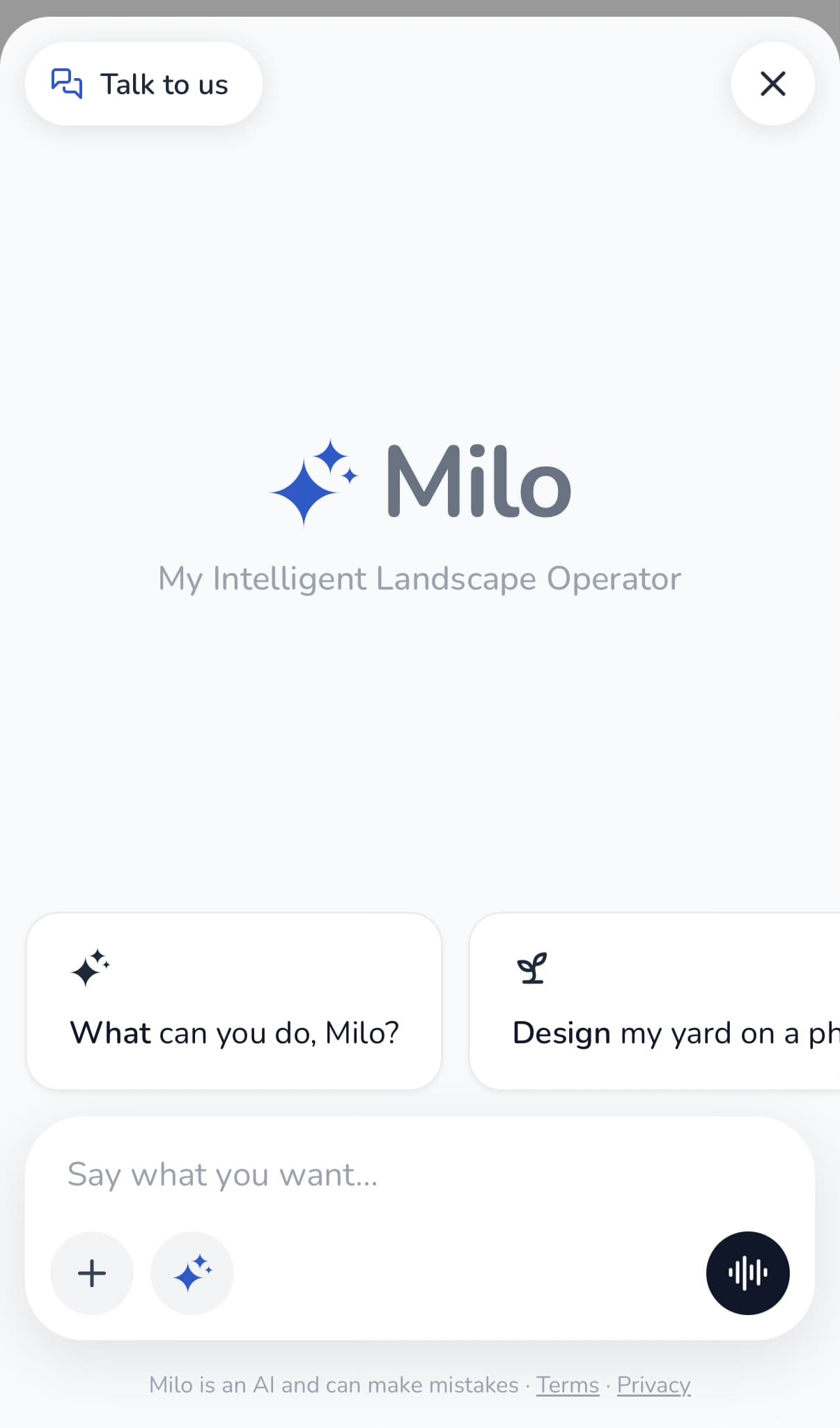
Milo is an AI and can occasionally miss a detail. Double-check anything critical, and ask for a person anytime.
Reaching support from inside the app
If you're signed in at app.simplyscapes.com, select Help in the left sidebar or from your top-right Account menu to open the Help Center and chat widget in a new tab, or email support@simplyscapes.com directly.
Use the Talk to us menu
To reach our team directly from the chat widget on simplyscapes.com or the Help Center, select Talk to us in the top-left corner of the widget. You'll see four options:
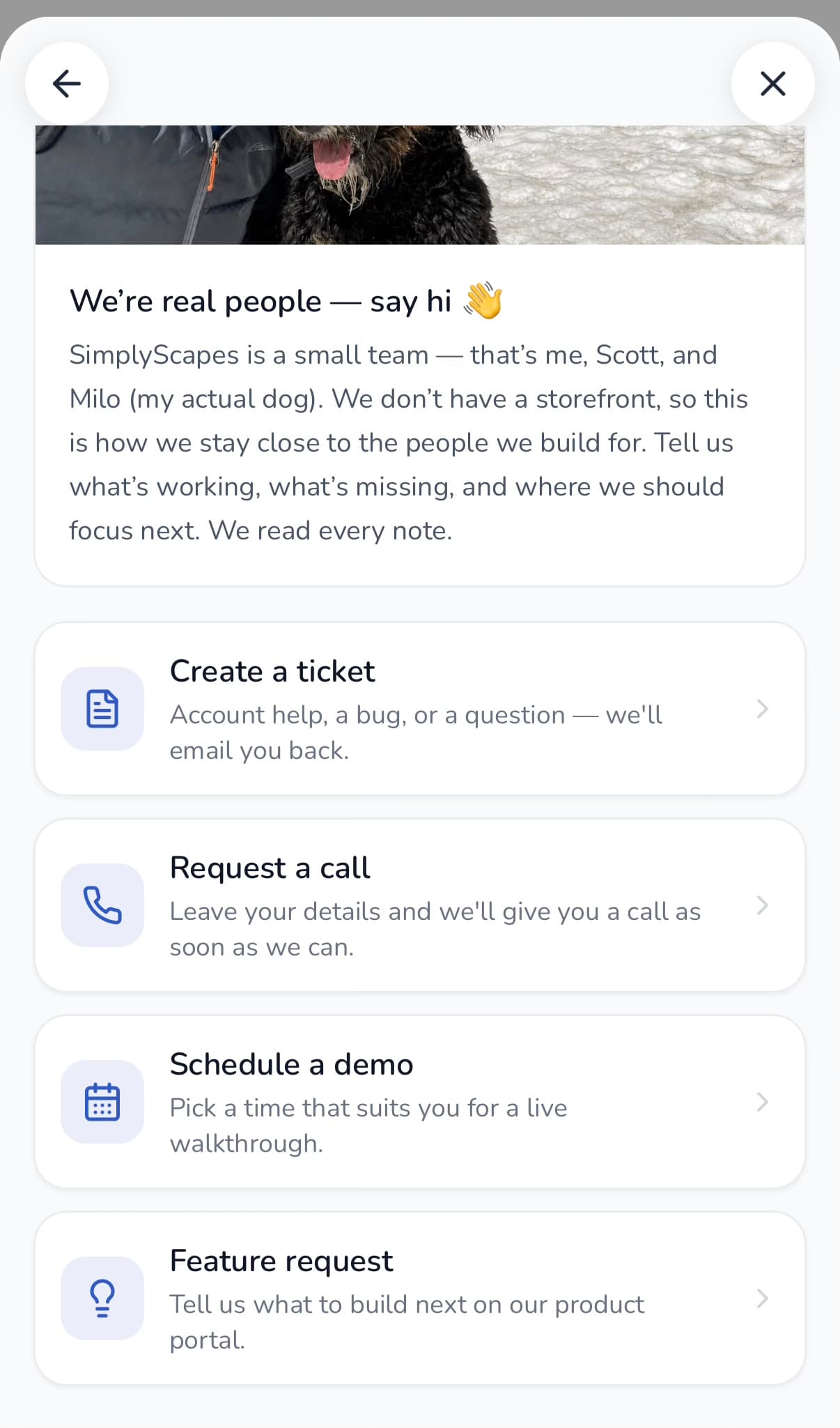
Create a ticket
Best for account help, bug reports, or questions you'd like answered in writing.
- Select Create a ticket.
- Enter your Name and Email.
- Add a Subject and a short description of what's going on.
- Select Submit ticket.
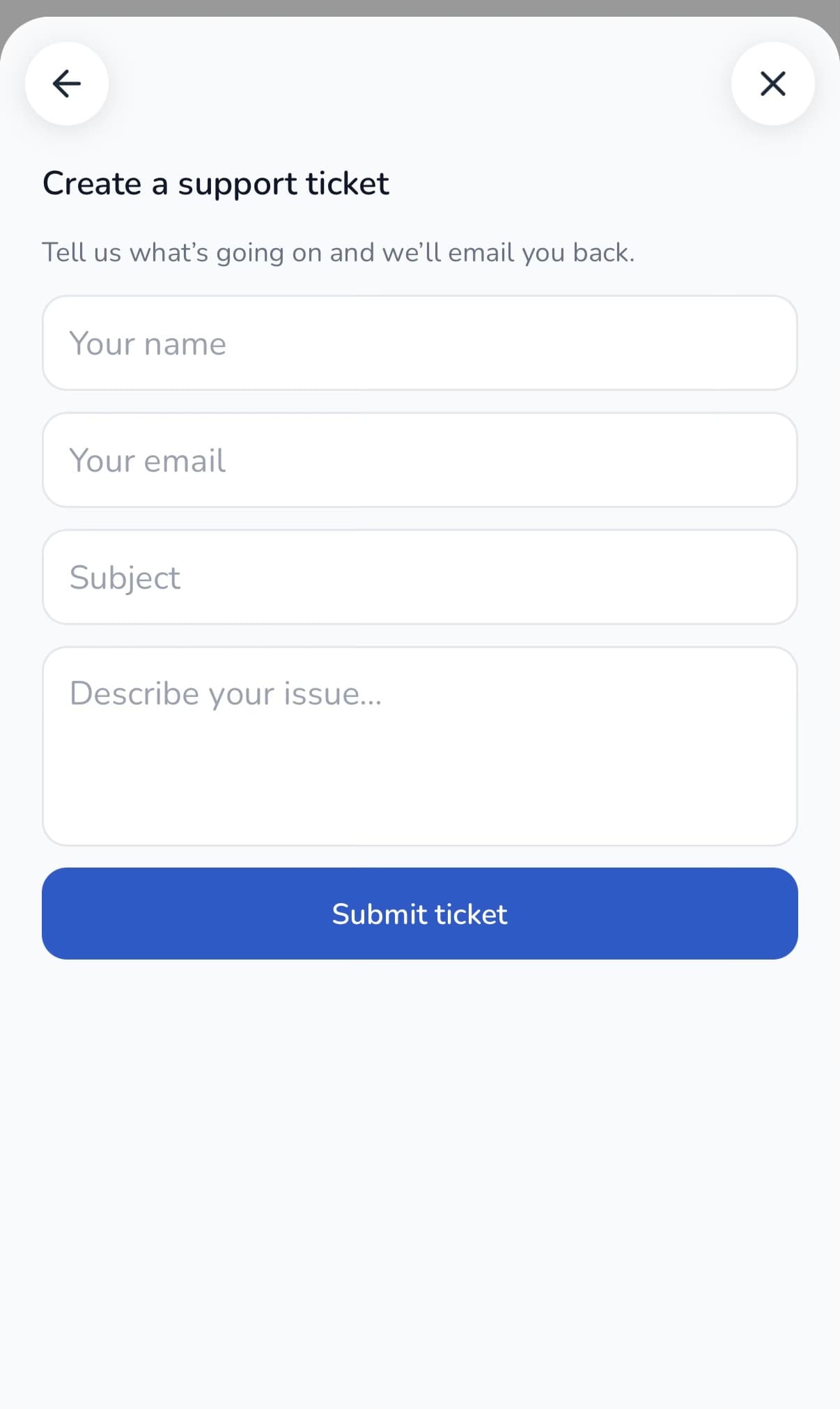
We reply to the email address you enter, so double-check it for typos.
Request a call
Prefer to talk it through? Leave your details and we'll call you back — no hold music or phone tree.
- Select Request a call.
- Enter your Name, Phone number, and Email.
- Optionally add a note about what you'd like to cover.
- Select Request a call.
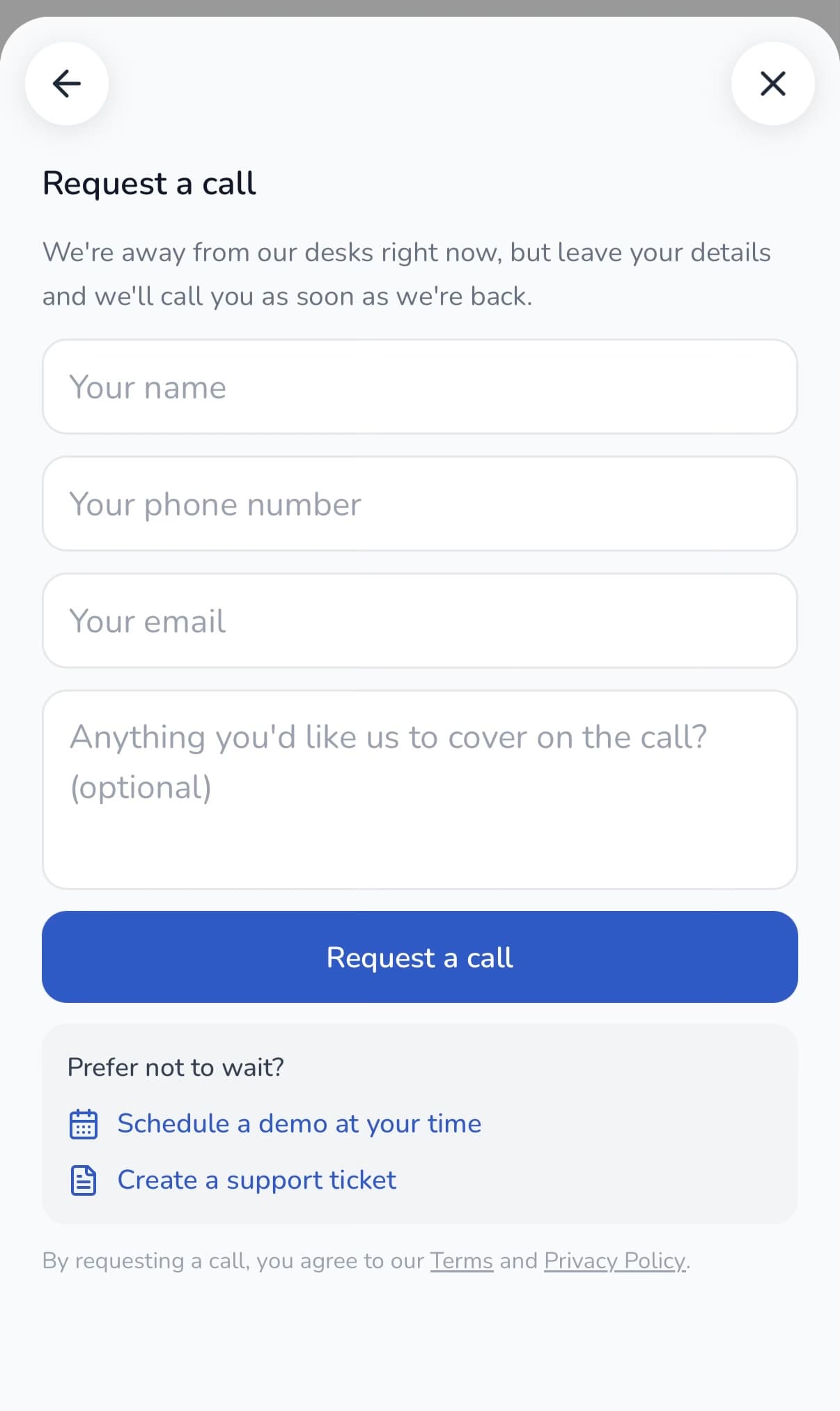
When we're at our desks, we call back quickly. If we're away, we'll follow up as soon as we're back, and you'll also see quick links to Schedule a demo or Create a ticket if you'd rather not wait. Requesting a call means agreeing to our Terms and Privacy Policy linked at the bottom of the form.
Schedule a demo
Evaluating SimplyScapes for your business or school? Select Schedule a demo to open our calendar in a new tab and book a live walkthrough at a time that works for you.
Feature request
Have an idea for what we should build next? Select Feature request to open our product portal in a new tab, where you can post ideas, vote on requests from other customers, and follow our public roadmap.
Do you have a phone number?
We don't publish a phone number or run a call center. Instead of putting you in a queue, use Request a call in the Talk to us menu and we'll ring you back. If you want to pick a specific time or evaluate SimplyScapes for a team, use Schedule a demo.
Prefer email?
Email us anytime at support@simplyscapes.com and we'll get back to you.