How do I navigate the dashboard?
Find Jobs, Visual Designs, Site Plans, clients, workspace settings, and the People area in the current SimplyScapes dashboard.
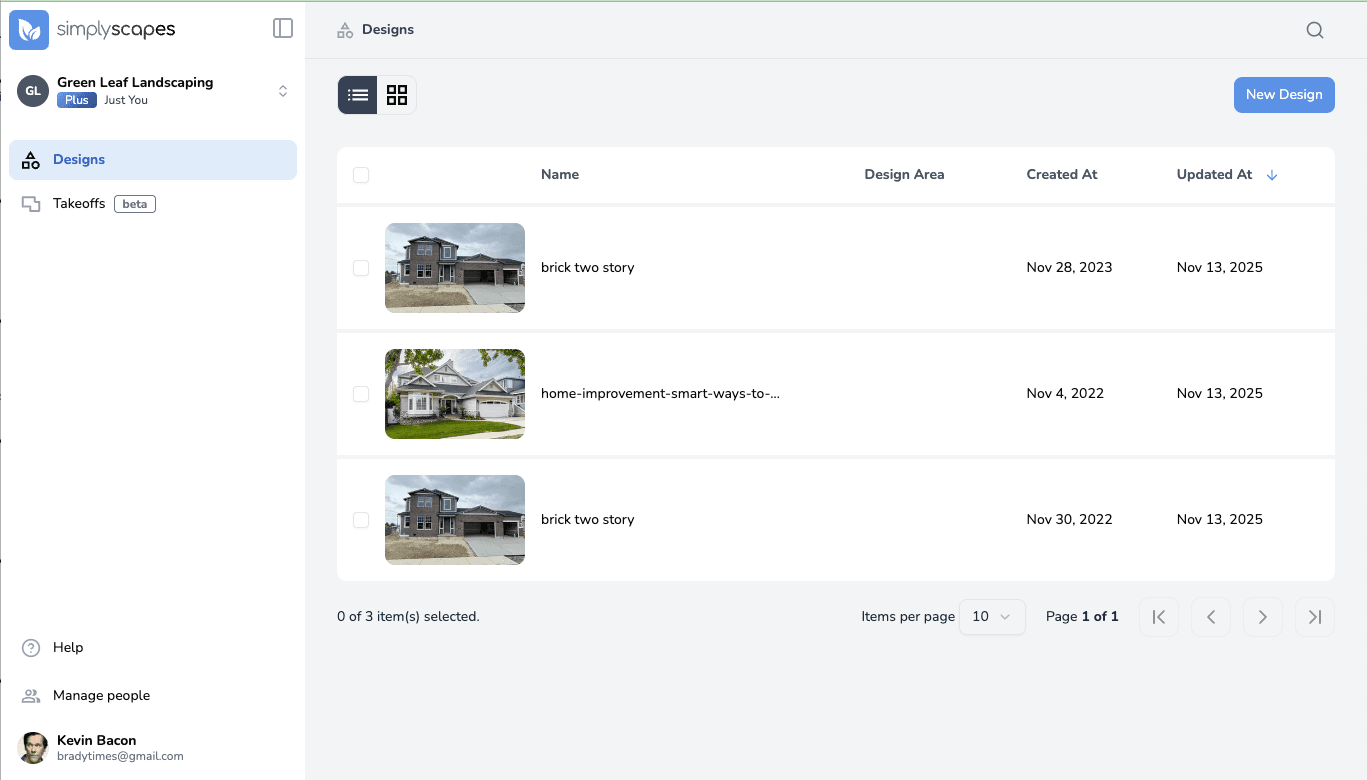
Use the left sidebar to move between the main areas of the workspace. The available items depend on whether the workspace is Homeowner or Professional.
Left sidebar
- Workspace selector — Switch workspaces or open workspace settings.
- Home — The Homeowner label for the Jobs area. Open the property and move through Design, Estimate, and Build.
- Jobs — The Professional label for the same project workspace.
- Designs — Create, find, and reopen Visual Designs.
- Site Plans — A standalone list shown in Professional workspaces. Homeowner workspaces open their Site Plan from Home > Design instead.
- Clients — Professional workspaces only.
- Manage people — Shown to Professional workspace owners and admins while Labs is enabled.
- Help — Opens this Help Center.
Every workspace can create a Site Plan inside a job. The separate sidebar list is an additional Professional-workspace view.
Inside a job
A job is organized into three phases:
- Design for photos, Visual Designs, and the Site Plan.
- Estimate for estimates, proposals, and invoices.
- Build for the task board.
Job details is a context panel beside the phases rather than a fourth phase.
SimplyScapes Labs
Home/Jobs and Manage people appear after a workspace administrator enables Labs. Within a job, Estimate, Build, and panels carrying a Labs badge are still being developed. The Irrigation tools inside Site Planner are also presented as a Labs Preview.
What is the dashboard?
The SimplyScapes dashboard is the workspace hub for Jobs, Visual Designs, Site Plans, clients, settings, and team access.
Creating Your First Design
Create your first landscape design in SimplyScapes. Start from a photo of your own property, and learn what makes a great background image.