How do I move a design element forward and backward?
Control the layering of overlapping plants and objects to bring items forward or send them backward and create realistic depth in your landscape design.
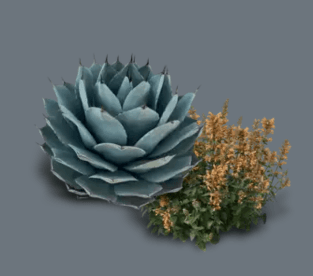
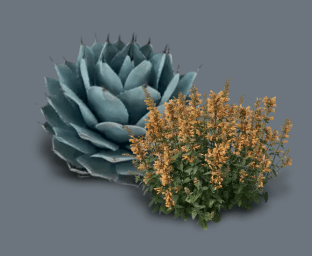
When design elements overlap, you can control which items appear in front of or behind others. This is called layering, and it helps you create realistic depth in your design.
Step-by-step instructions
-
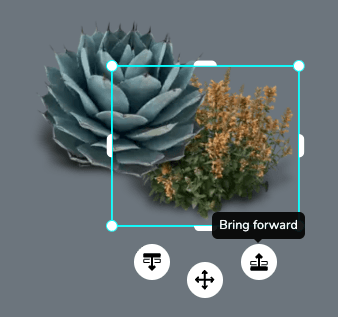
Click on the item you want to move forward or backward
-
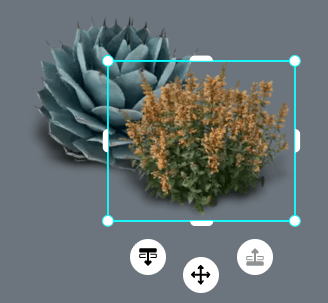
When selected, three icons appear beneath the item. The left icon (layers with a downward arrow) sends the item backward. The right icon (layers with an upward arrow) brings the item forward
-
Click the appropriate icon to adjust the item's layer position. Each click moves the item one layer at a time
-
When you're finished, click on any blank area of the canvas or press the Esc key on your keyboard to deselect the item
Tips
- Each click moves the item just one layer at a time. If you have multiple design elements stacked together, you may need to click the button several times before you see the change
- Items added to the canvas most recently appear on top by default. Use the layer controls to arrange elements in the order that looks most natural for your design
- This feature works with all design elements including plants, objects, drawn spaces, cloned areas, and uploaded images
Moving Items on the Canvas
Reposition design elements and control their layering so plants and objects sit in front of or behind each other for realistic depth in your landscape design.
How do I move an item on the canvas
Reposition any plant, object, or element on your canvas using drag-and-drop or the move cursor, including items made with the Draw and Clone tools.