Do I need a password?
SimplyScapes uses passwordless login, so there is no password to set, remember, or reset. Sign in with a 6-digit code emailed to your inbox instead.
SimplyScapes uses passwordless authentication. There is no password to set, remember, or reset.
How login works
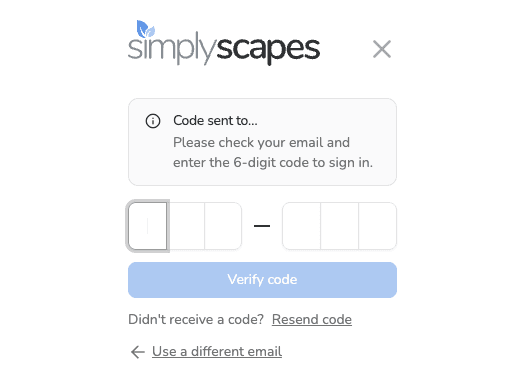
Every time you log in with your email, SimplyScapes sends a 6-digit verification code to your inbox. Enter the code and you're in. No password required.
Trouble logging in?
- Code not arriving? Check your spam folder, or search your inbox for "SimplyScapes"
- Code expired? Codes are valid for 5 minutes. Select Resend code to get a new one
- Can't remember which email you used? Search your inbox for "SimplyScapes" — we send a welcome email when you create an account
- Still stuck? Contact support@simplyscapes.com
How do I create and log in to my SimplyScapes account?
Create a free SimplyScapes account in seconds with no password. Sign in using an emailed one-time passcode or Continue with Google to start designing.
How do I update my account information?
Update your SimplyScapes profile in a few clicks. Change your name and personal details from the account settings and see them applied instantly.