I sign in, then get sent back to the sign-in page
Fix SimplyScapes sign-in loops when the app returns you to the login screen or can't finish updating your session. Covers browser cookies, extensions, antivirus, and managed computers.
You enter your 6-digit code (or use Continue with Google), it's accepted, and SimplyScapes immediately sends you back to the sign-in page — or shows a message that it couldn't finish updating your session (with Retry and Sign in again buttons) or that your browser is blocking sign-in cookies.
This isn't a problem with your account or your code. Your browser is refusing to keep the sign-in cookie that proves you're logged in. SimplyScapes hands the cookie to your browser, something discards it, and the next page treats you as signed out.
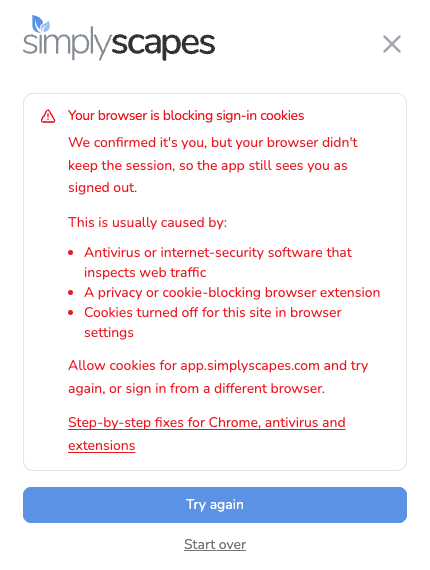
If both Continue with Google and emailed 6-digit codes fail the same way, that rules out your email and Google account. Something in your browser, security software, or network is blocking or stripping the sign-in cookie.
Start with the 60-second test
Open a private or Incognito window (Ctrl+Shift+N on Windows, Cmd+Shift+N on Mac) and try signing in at app.simplyscapes.com.
| What happens | What it means | Next step |
|---|---|---|
| Sign-in works in Incognito | A browser extension is deleting the cookie (Incognito turns extensions off by default). | Step 2 |
| Sign-in still fails in Incognito | Not an extension — but per-site cookie blocks, antivirus, and work policies still apply in Incognito. | Step 1 |
| Sign-in works in a different browser (Edge, Firefox, Safari) | The issue is inside your first browser's settings or extensions, not your network or antivirus. | Step 1 |
| Sign-in fails in every browser on this computer | Antivirus web scanning or a managed work policy is likely interfering. | Step 3 |
| Sign-in works on your phone over cellular data, not on Wi-Fi | Your local or corporate network is filtering the connection. | Step 4 |
Incognito does not bypass Chrome's per-site cookie blocks. If simplyscapes.com is blocked in site settings, it stays blocked in Incognito too, so start at Step 1 if Incognito fails.
Step 1: Your browser is blocking site data
This is the most common cause, and it's easy to trigger by accident with a stray click on a browser prompt or a privacy cleanup.
Google Chrome
- Open a new tab and go to
chrome://settings/content/siteData(or open Settings > Privacy and security > Site settings > Additional content settings > On-device site data). - Under Default behavior, make sure Allow sites to save data on your device is selected. If Don't allow sites to save data on your device (not recommended) is selected, switch it to allow.
- Scroll to Customized behaviors and check Not allowed to save data on your device.
- If you see
app.simplyscapes.com,simplyscapes.com, or[*.]simplyscapes.com, select the three-dot menu on that row and choose Remove. Repeat for any other SimplyScapes entry. - To allow SimplyScapes explicitly, scroll to Allowed to save data on your device, select Add, enter
[*.]simplyscapes.com, and select Add. - Return to
app.simplyscapes.comand sign in again.
Chrome help references:
- Learn about on-device site data in Chrome
- Delete, allow and manage cookies in Chrome
- Change site settings permissions
Other browsers (Edge, Safari, Firefox)
- Microsoft Edge: Go to
edge://settings/content/cookies, allow sites to save and read cookie data, remove SimplyScapes from Block, and add[*.]simplyscapes.comto Allow. - Safari (Mac, iPhone, iPad): In Settings > Privacy, confirm Block all cookies is off. If sign-in still loops, test briefly with Prevent cross-site tracking off.
- Firefox: Click the shield icon in the address bar on
app.simplyscapes.comand toggle Enhanced Tracking Protection off for the site, or addhttps://app.simplyscapes.comunder Settings > Privacy & Security > Cookies and Site Data > Manage Exceptions.
Step 2: A browser extension is deleting it
An extension can wipe a sign-in cookie right after your browser saves it. Don't rely on checking each extension's permissions list — cookie access doesn't always show up there. Test directly in Chrome:
- Go to
chrome://extensions. - Toggle every extension off, then sign in at
app.simplyscapes.com. If sign-in succeeds, an extension is the cause. - Turn extensions back on half at a time, signing in after each batch, until you isolate the one causing the loop.
- Remove that extension or add
app.simplyscapes.comto its allow list.
Common culprits, most likely first:
| Extension | Why it interferes |
|---|---|
| Cookie AutoDelete | Deletes cookies as soon as a tab closes or refreshes |
| Click&Clean, Close & Clean, other cookie cleaners | Clear cookies on a timer or on close |
| Avast / AVG Online Security & Privacy | Auto-consent feature can decline site storage |
| Consent-O-Matic, Super Agent, I don't care about cookies | Automatically answer cookie banners, sometimes by refusing |
| Malwarebytes Browser Guard | Can block page scripts and storage |
| Ghostery | Aggressive anti-tracking rules can block session storage |
| AdBlock / Adblock Plus | Rarely the cause, but easy to rule out |
| uBlock Origin Lite | Rarely the cause |
| Privacy Badger, DuckDuckGo, Disconnect | Unlikely — they target third-party trackers rather than first-party sign-ins |
If an extension is locked on by your employer or school, go to Step 4. See also installing and managing Chrome extensions.
Step 3: Antivirus or internet-security software
Many security suites inspect encrypted HTTPS traffic between your browser and websites. When that inspection alters or drops a header, your sign-in cookie is lost. Other suites bundle anti-tracking or cleanup tools that strip cookies automatically.
To test this, pause your antivirus web protection for a couple of minutes, sign in, and turn it right back on. If sign-in works while web protection is paused, add app.simplyscapes.com to the software's exception or allow list.
Never leave your antivirus disabled. Add app.simplyscapes.com as an exception so your protection stays active.
| Software | Feature to check |
|---|---|
| Avast | Web Guard (formerly Web Shield) → HTTPS scanning; also AntiTrack |
| AVG | Web Shield → HTTPS scanning |
| Bitdefender | Online Threat Prevention → Encrypted Web Scan, Anti-tracker, Safepay — unblock a safe site |
| Kaspersky | Encrypted connection scanning; Safe Money banking browser |
| Norton | Safe Web extension; sites unavailable after installing Norton |
| ESET | SSL/TLS protocol filtering |
| Trend Micro | Web Threat Protection — can't sign in to websites |
| Avira | Web Protection; Browser Safety extension |
| Sophos Home | Web Protection |
| Malwarebytes | Browser Guard allow list |
| Webroot | Web Threat Shield; Identity Shield |
| McAfee | WebAdvisor — allow a website |
| F-Secure | Browsing Protection blocking a safe site |
Two extra details to keep in mind:
- Windows Defender (built into Windows) does not inspect encrypted web traffic and does not cause this issue. If Defender is your only security tool, move on to Step 4.
- Some security suites include a hardened banking browser (such as Kaspersky Safe Money, Bitdefender Safepay, or Avast/AVG Bank Mode) that quietly opens sign-ins in an isolated window with separate cookie storage. If a different-looking browser window popped up during sign-in, disable that redirect for SimplyScapes.
- Scheduled desktop cleaners such as CCleaner and AdGuard can also wipe cookies on a schedule; both let you exempt
simplyscapes.com.
Step 4: A work, school, or managed computer
On a company or school computer, IT policies may control browser cookies or route traffic through a corporate web gateway that inspects encrypted connections.
- Open
chrome://policy. If policies are listed, your browser is managed by an organization. - Look for
DefaultCookiesSetting,CookiesBlockedForUrls,CookiesSessionOnlyForUrls,ClearBrowsingDataOnExitList, orBrowsingDataLifetime. - Share this article with your IT team and ask them to allow cookies for
[*.]simplyscapes.comand bypass TLS/SSL inspection for that domain.
Corporate gateways like Zscaler and Netskope support per-domain bypasses, and IT teams handle requests like this routinely.
Signed out every time you restart Chrome?
If you can sign in and work normally, then get signed out only after closing Chrome completely, that's a different setting.
Open chrome://settings/content/siteData. If Delete data sites have saved to your device when you close all windows is selected, either switch to Allow sites to save data on your device or keep that setting and add [*.]simplyscapes.com under Allowed to save data on your device.
Still stuck?
Email support@simplyscapes.com and include:
- The email address you're signing in with
- Whether both Continue with Google and emailed codes fail the same way
- Your browser and version (in Chrome: Menu > Help > About Google Chrome)
- Your operating system and any antivirus or security software you run
- Whether sign-in works in an Incognito window, a different browser, or on your phone
That last detail is the fastest clue — it usually narrows down the cause immediately.
Related guides
- I can't log in — Sign-in code didn't arrive, expired, or hit the attempt limit
- Regaining access to your account — Lost email access or designs split across two accounts
I can't log in
Fix SimplyScapes sign-in problems when your 6-digit login code never arrives, expires, hits the resend limit, or when Continue with Google fails.
My photo won't upload
Fix failed photo uploads in SimplyScapes with supported formats for each upload spot, the 25 MB size limit, HEIC conversion tips, and quick retry steps.