How do I rotate an item on the canvas?
Rotate any plant or object with the rotation slider to change its angle and orientation, adding natural variation to your landscape design.
You can rotate a design element to change its angle and orientation.
Step-by-step instructions
- Click on the item you wish to rotate
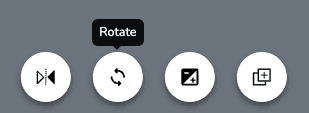
- Select Rotate in the selected-item toolbar.
- In the adjustment tray, drag the slider to rotate the item. The current angle is displayed with the control.
- When you're finished rotating, click on any blank area of the canvas or press the Esc key on your keyboard to deselect the item
Tips
- Rotation is useful for creating natural variation in your design. Try rotating duplicate plants slightly so they don't all face the same direction
- To reset rotation and other image adjustments, select Reset All in the adjustment tray.
How do I resize items on the canvas?
Resize any plant or object by dragging corner handles to scale proportionally, stretching the sides, or using the slider, ideal for touch devices.
How do I flip an item horizontally on the canvas?
Flip any plant or object horizontally to mirror it, adding natural variety and helping elements fit the layout of your landscape design.